

Table of Contents
Overview
Today we are going to explore a common configuration vulnerability I see as a penetration tester when reviewing Active Directory environments. We’ll learn what it is, why it matters, and what you can do to find these in your Active Directory environment. Let’s dive in!
Background
Microsoft Active Directory is a popular directory service used by many organizations for internal network management. Active Directory, or AD for short, stores objects, which represent user accounts, computer accounts, groups, permissions, printers, BitLocker recovery keys, local admin passwords, and more.
AD forms the backbone of many organizations’ IT environments, in particular serving as the central hub for account and access management. This makes it a popular target for malicious threat actors and consequently an important asset to protect.
AD Groups and Managers
AD groups are logical buckets that hold objects, primarily users and computers. A group can be granted permissions to access resources, such as servers or file shares, and the permissions are inherited by (granted to) the group’s members. Policies, such as password strength or lock screen timeout, can also be assigned to a group and thus applied to the group’s members.
AD groups allow a user account to be set as the group manager through an attribute called “ManagedBy”. The Active Directory Users and Computers (ADUC) console shows the attribute in the “Managed By” tab of a group properties dialog:
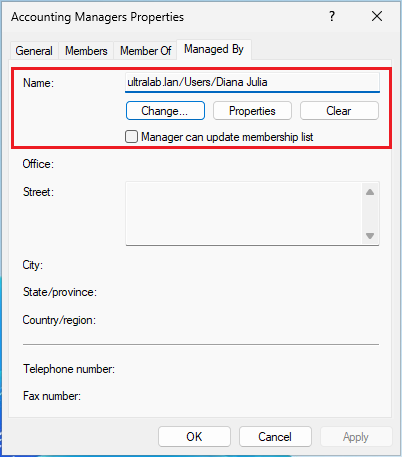
By default the manager doesn’t have special permissions over the group; the attribute mostly exists to help document what individual in the organization is responsible for the group. For example, AD administrators can refer to the manager field to see who to ping on Teams or Slack when someone else asks to be added to the group.
The exception though is the AD user management console has a checkbox labeled “Managers can update membership list”. When checked, the group manager is given permission to add or remove members. This switches the ManagedBy attribute from a documentation tool to an access control point.
Potential for Misconfiguration
Cybersecurity has a concept called principal of least privilege. The idea is a given entity should only have privileges necessary to perform necessary job functions and nothing more.
In practice, organizations often implement principal of least privilege by creating a second account for high-privileged users. This account differs from the individual’s normal employee account – the second account is granted sensitive privileges while the first account does not have those privileges.
The separation creates a more robust security posture through compartmentalization. If the individual clicks on a malicious email as the normal employee account, and the normal employee account is compromised, then the attacker does not automatically gain sensitive privileges as those were not granted to the normal account.
Privileged accounts often end up in groups to help organize privilege management. For example, suppose an organization has two administrators responsible for identity and access management (IAM) functions. The organization gives each administrator a second, privileged account to use for sensitive IAM activity. The organization creates an AD group, assigns the AD group a set of permissions appropriate for IAM administration, and puts the privileged accounts in the group.
To demonstrate, I created a test AD environment and a test group named “Identity Admins”. Two test privileged accounts were created and added to the group:
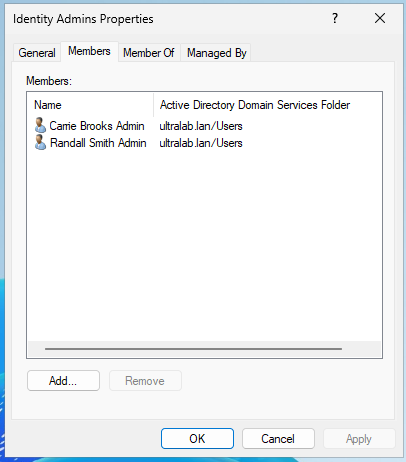
Each user name ends with the string “Admin” which in this test environment is the nomenclature for privileged accounts.
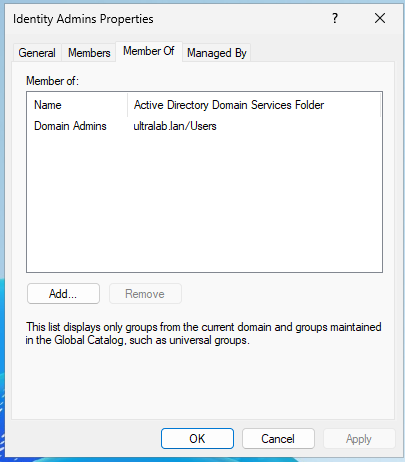
Checking the group’s membership we can see the group is a member of the Domain Admins groups, which is a highly privileged group in AD that has full control of the AD environment (called a domain, hence the name Domain Admins).
If we click the group’s Managed By tab, we see the manager is a third user, Katie Thompson. Notice the “Manager can update membership list” checkbox is checked.
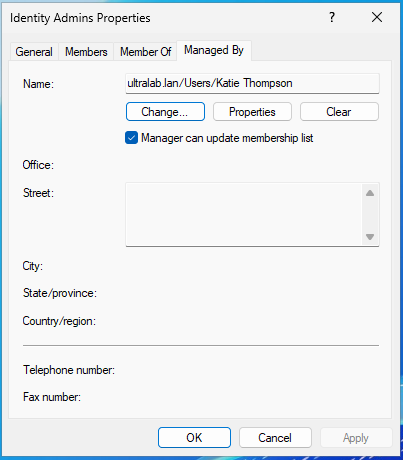
The manager account can add or remove accounts from the group, including the manager’s own account. The manager account is, for all intents and purposes, a member of the group as well, even if the account is not currently a direct member.
The group has privileged accounts and grants Domain Admin rights to those accounts. But the manager is an unprivileged account.
This introduces a vulnerability – the unprivileged manager account can add itself (or another account under the individual’s control) to the group and inherit elevated privileges, Domain Admin in this case.
Why is this a problem?
Compared to privileged accounts, an unprivileged account:
- May not have the same controls such as password policy, login sources, MFA, etc .
- May be at higher risk of compromise due to use for higher-risk activity such as web-browsing and email.
- May not be subject to the same monitoring, alerting, or auditing processes.
Thinking back to our example, an attacker moving inside the organization’s environment, or a malicious insider, does not need to compromise “Carrie Brooks Admin” or “Randall Smith Admin”. The attacker can just compromise the “Katie Thompson” account, then add it or another attacker-controlled account to “Identity Admins” to get Domain Admin privileges.
This class of vulnerability is known as privilege escalation. The attacker has one set of privileges, but then exploits the misconfiguration to gain additional privileges.
Changing group membership is easy for an attacker to do, through both hacker-oriented tools as well as legitimate administrator-oriented tools. The attacker can make the change through the Active Directory Users and Computers (ADUC) console (any AD account can install ADUC and interact with AD through it), through PowerShell commands such as Add-ADGroupMember, or through dedicated security tools designed to exploit AD vulnerabilities.
Detection
How do you find these misconfigurations?
Checking each group in the ADUC GUI tool is overly time consuming, so we’ll use command line tools and share a script to help automate it. PowerShell is our script engine of choice. Microsoft publishes a free toolkit called Remote Server Administration Tools (RSAT) which includes Powershell commands for performing AD related actions. https://learn.microsoft.com/en-us/troubleshoot/windows-server/system-management-components/remote-server-administration-tools
After installing RSAT, the first step is to check if the AD group has a manager. We can do this by running the following Powershell command:
Get-ADGroup "Identity Admins" -properties ManagedBy
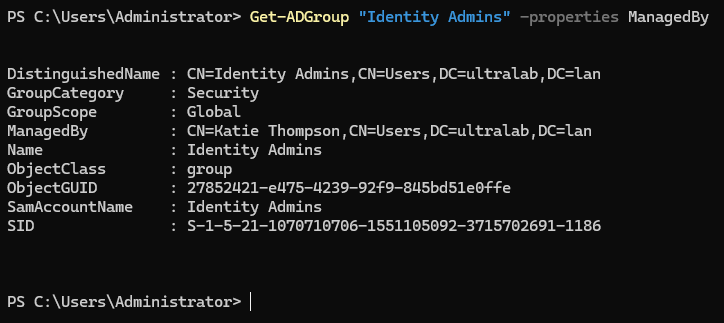
The “ManagedBy” field is populated with value “CN=Katie Thompson,…”, so the group does have a manager.
Next we need to retrieve and store the group and manager user account objects:
$group = $Get-ADGroup "Identity Admins" -properties distinguishedName, ManagedBy $manager = Get-ADUser $group.ManagedBy -properties SamAccountName

We need the manager’s SamAccountName attribute for later so we request it as part of our query.
Now we can check if the manager account has an entry in the group’s Access Control List (ACL; a list of allow or deny statements that control who can do what). The $group and $manager variables from earlier make this step easier:
Get-ACL "AD:$($group.distinguishedName)" | Select-Object -ExpandProperty Access | Where-Object IdentityReference -like "*$($manager.SamAccountName)*" | Where-Object ActiveDirectoryRights -eq "WriteProperty"
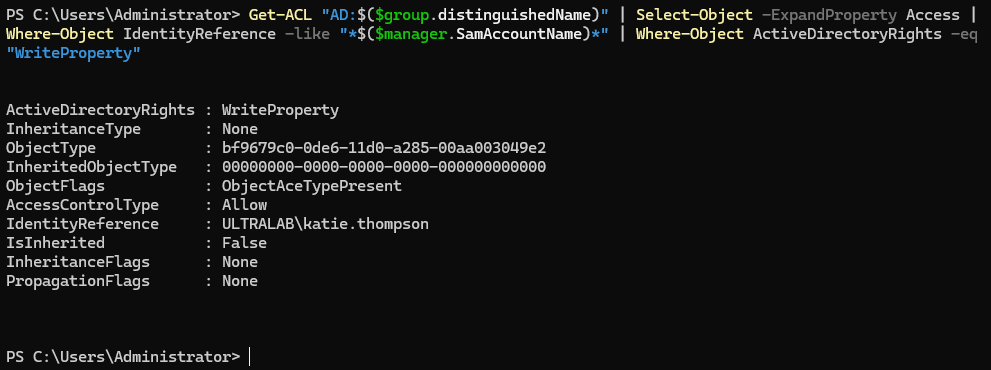
If the manager has permission to update the group, the manager name and permissions get printed to screen.
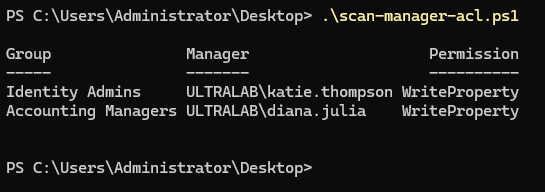
Ultrastrike created a short Powershell script to help automate the process of finding groups where the manager has update permission. You can download it from our GitHub organization (https://github.com/ultrastrike-cyber/scan-manager-acl).
The script pulls all groups from AD, filters to groups that have a manager set, and checks each group’s ACL to see if the group manager has membership modification permission. The script needs to be run from a Windows domain-joined computer, from a domain-joined account, on a system with RSAT installed.
The Ultrastrike script automatically checks all groups in the AD domain. You will need to review the output and decide if manager access is appropriate for each group, but the script does the heavy work of collecting the information for you.
Summary
Manager access to update group membership is not by itself a vulnerability, but it can lead to privilege escalation vulnerabilities if the group grants access that the manager account itself does not have. In some situations managers should have permissions to update a group, but it is worth periodically checking your environment to make sure those instances are expected.
In particular, check your environment for privileged groups managed by unprivileged accounts where the manager has permission to update group membership. These situations represent potential risk because an unprivileged account is not expected/supposed to have privileged access, yet it is trivially easy for the group manager to add themselves to the group and gain the same privileges.
I hope this was useful! Thanks for reading and have a great day.
Comments are closed